

 Touchliner Pro
Broadcast-style clips, without the TV budget.
Spotlights, runs, zones and name tags that look straight out of a TV studio.
Make a whole meeting's clips in minutes, for a fraction of what pro analysis tools cost.
Mac. Works with MP4 and MOV clips from your analysis software. Free to try.
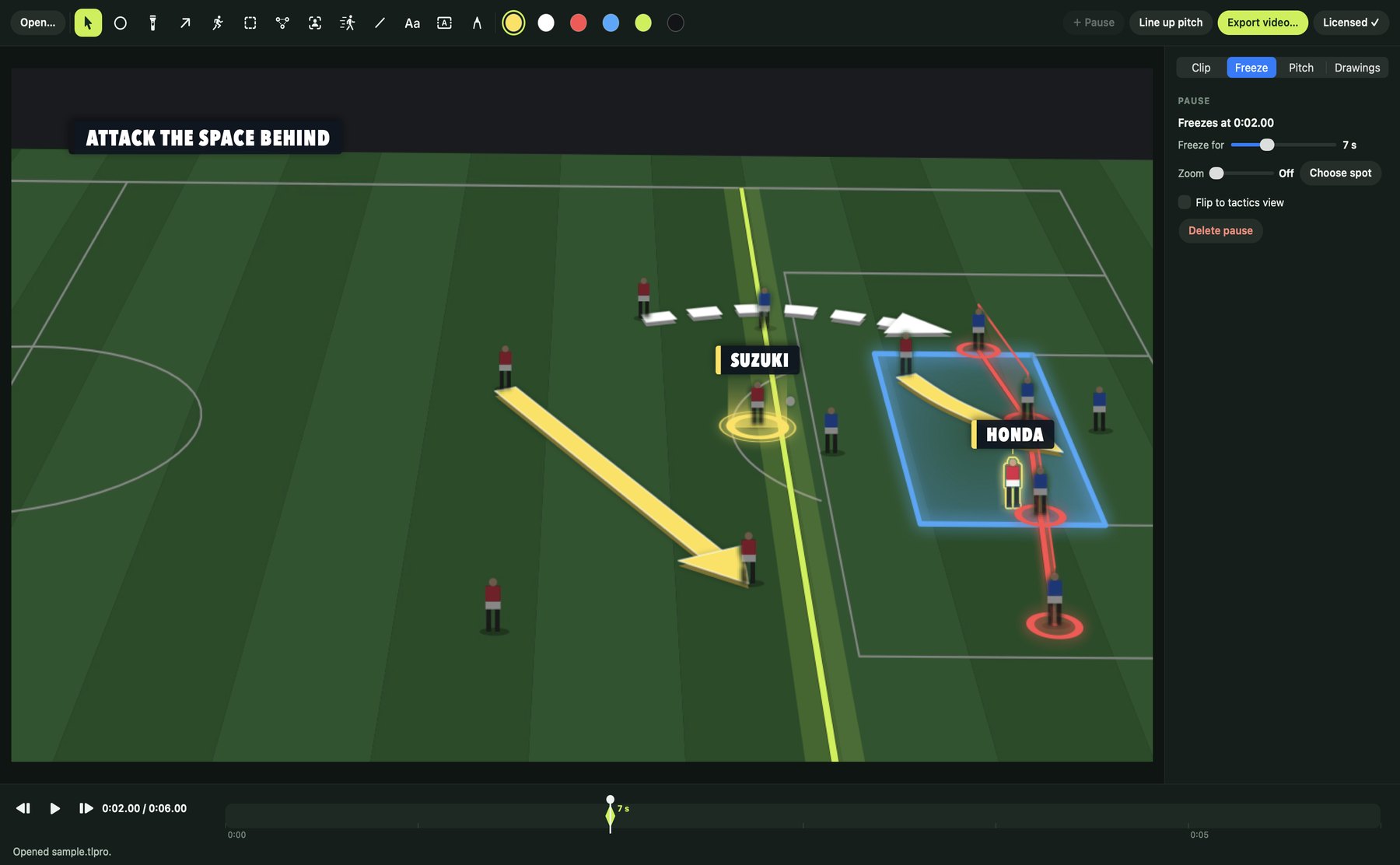
The look of TV analysis.
Thick 3D arrows, glowing zones, linked players and broadcast name tags, all drawn on the pitch in 3D.
Prefer something plainer? Switch to the classic look.
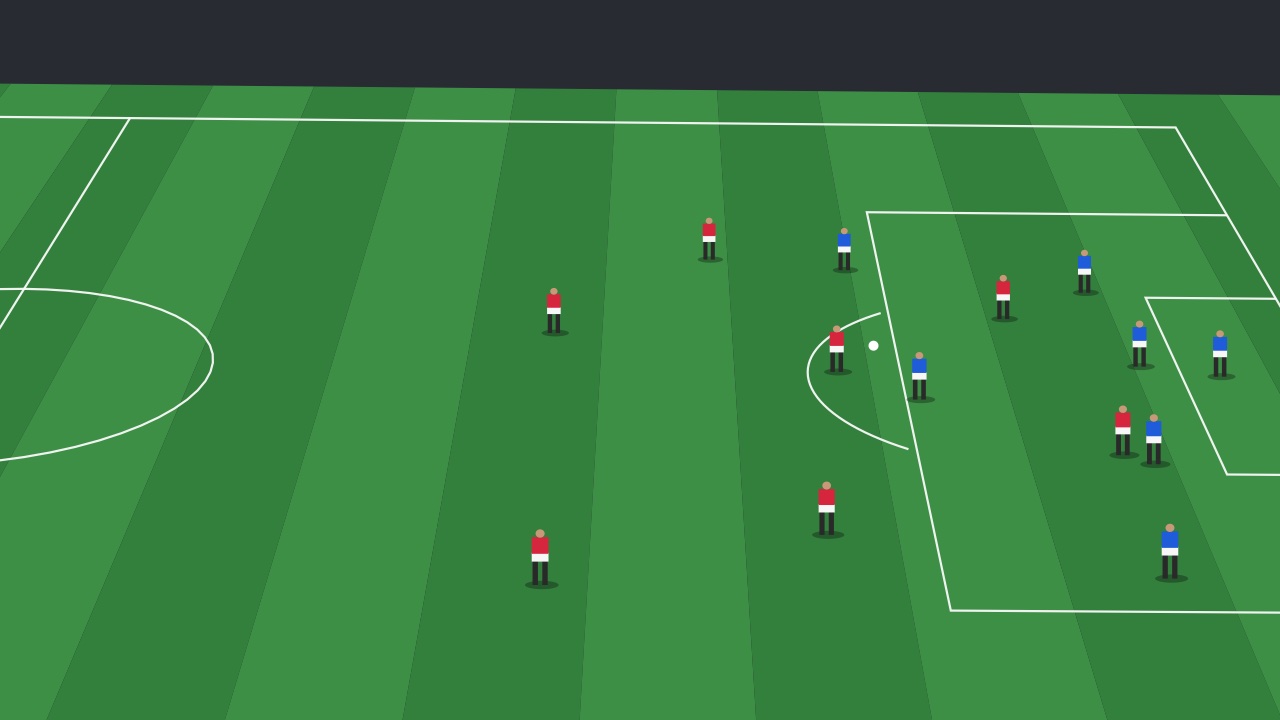
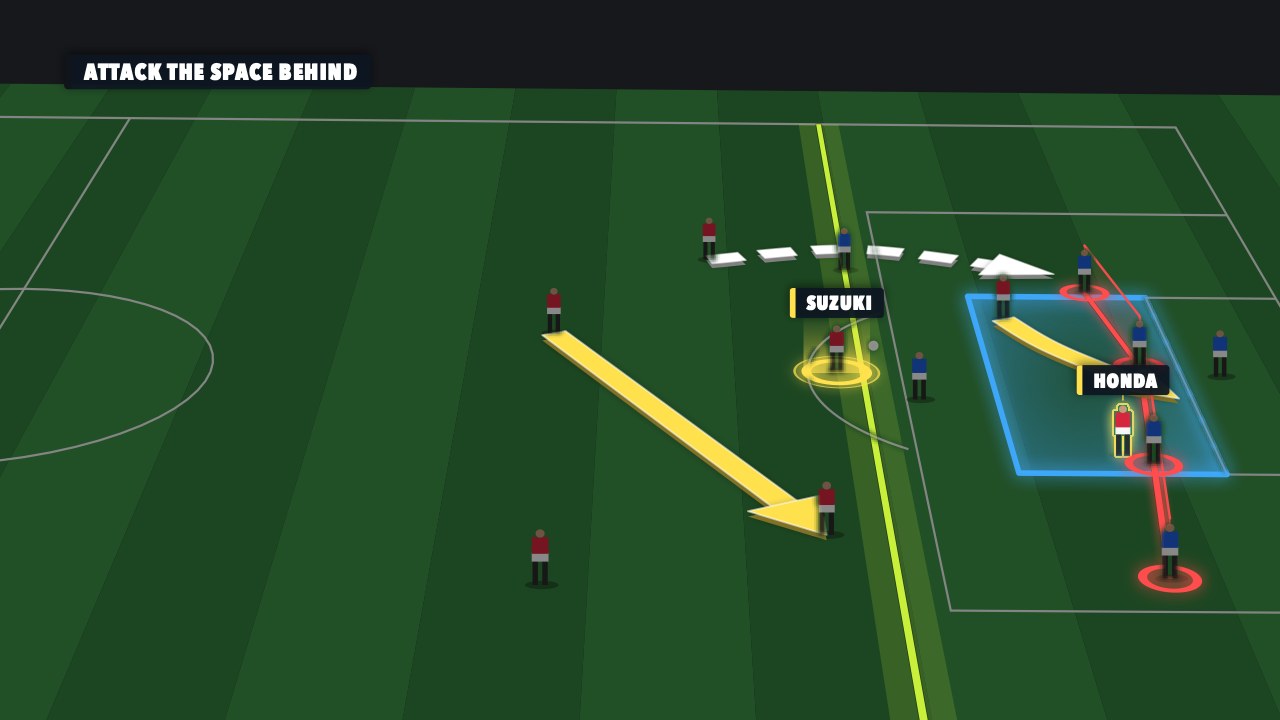
Everything you reach for in a clip.
Click to place, drag to draw. Drawings appear one after another, or several at once, while the clip is frozen.
Rings and spotlights
Ring a player's feet or light them up with a beam. Five ring styles, a second colour, and a name tag above them.
Passes and runs
Straight, or along the line you draw, tapering into the distance. Dashed for runs, solid for passes.
Lofted passes
Lift any arrow off the grass into a 3D arc with its shadow on the pitch. You choose how high.
Linked players
Click a back four or a midfield three to join them with a see-through wall, a line or a shaded shape.
Zones and lines
Boxes, ovals or any shape you draw round, with a glow, solid shading or stripes. Plus an offside line across the pitch.
Player highlight
Outline a player's body in a glow and dim everything else. Shift-click to take in an arm or a leg it missed.
Follows the players
When the clip plays on after a freeze, rings, spotlights, highlights and links stay on the players they were drawn on.
Move a player
Drag a player to where he should have been. He's lifted out of the picture, the grass is filled in behind him, and a dashed path shows the move.
Words on the pitch
Paint words onto the grass in perspective, or stand them up in 3D. Labels and name tags take your fonts, colours and club crest.
Zoom and freeze effects
Push in on what matters. Darken or blur the background, with a flash or logo wipe and a slow-down into each freeze.
Sound and export
The clip's sound is kept and goes quiet during freezes. Exports are normal MP4s that play anywhere.
Quick to use
Copy, paste and duplicate drawings, undo anything, and set your defaults once in Settings. Football and rugby pitches.
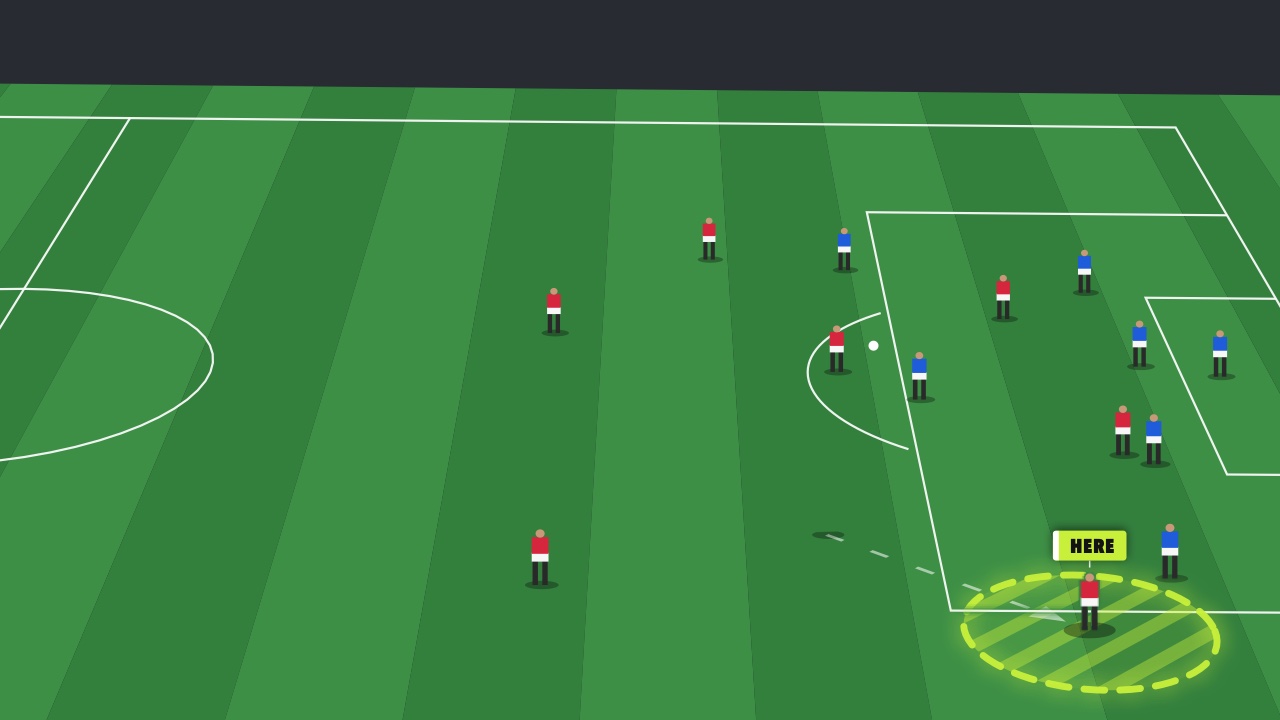
Show where he should have been.
Drag a player to a better spot, just like moving a magnet on a whiteboard. Touchliner Pro lifts him out of the picture, fills in the grass where he stood and puts him in the new spot at the right size, with a dashed path from where he was.
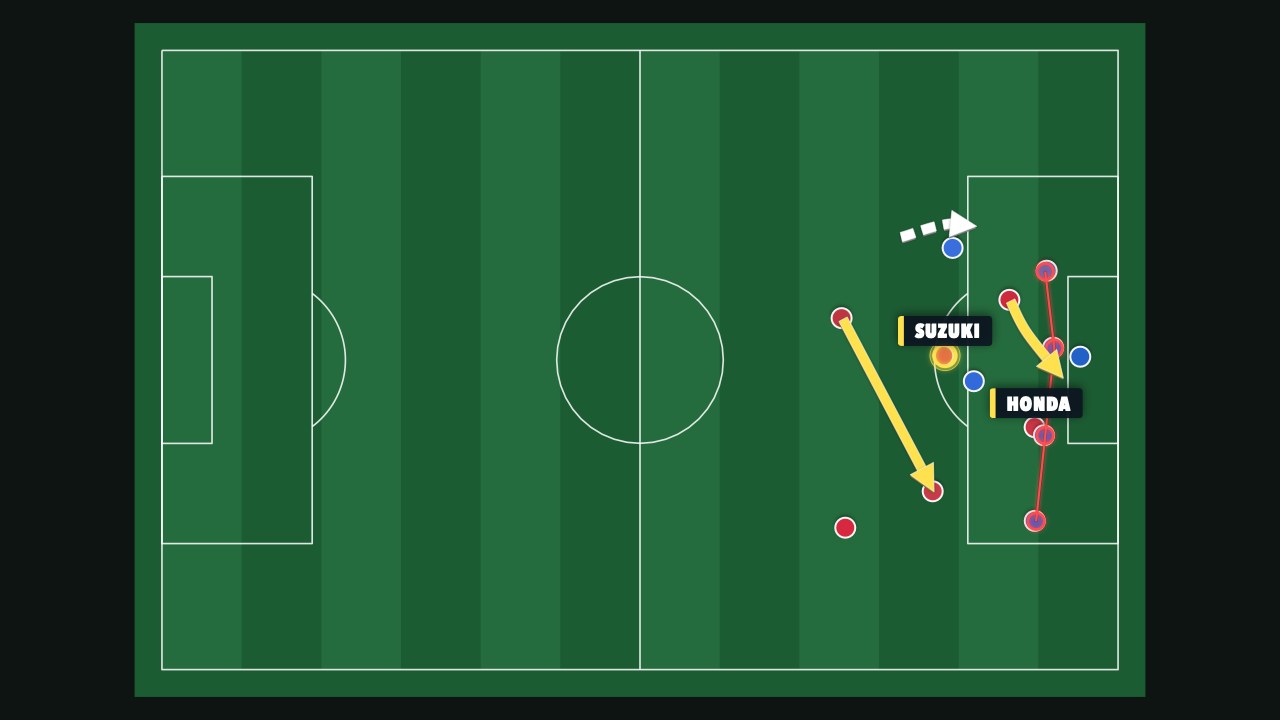
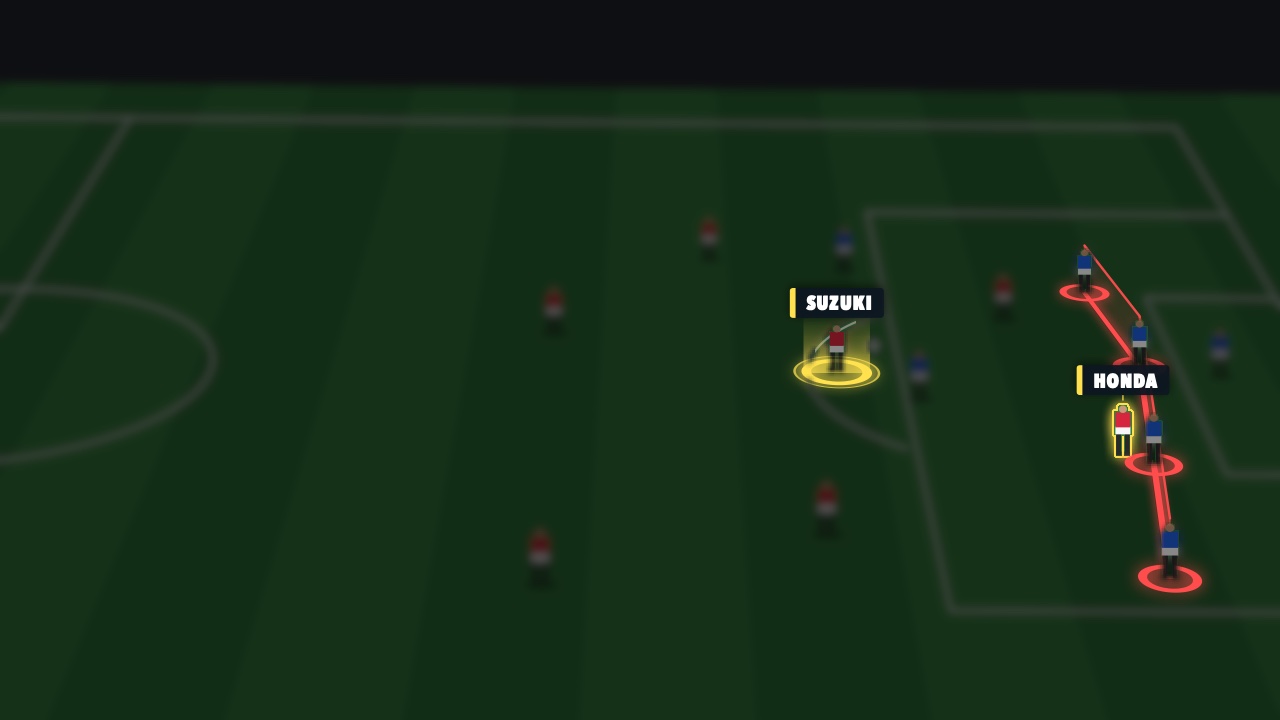
Flip to the tactics view.
During a freeze, the picture tilts down into the pitch seen from above. Every player becomes a dot in their shirt colour, and your rings, arrows and links move onto the plan. Then it tilts back into the video and play carries on.
- Players found in the picture for you
- The drawings you made, on the plan
- Turn it on for any freeze
Finished like TV analysis.
Make the players you're talking about stand out: the rest of the picture darkens or softly blurs while they stay sharp. Go into each freeze with a flash or a wipe with your logo, and slow the clip down into it.
- Darken, blur, or both
- Flash or logo wipe into each freeze
- Slow down into the freeze
- Your club logo in the corner of the whole clip
- Broadcast look, or a plainer classic one
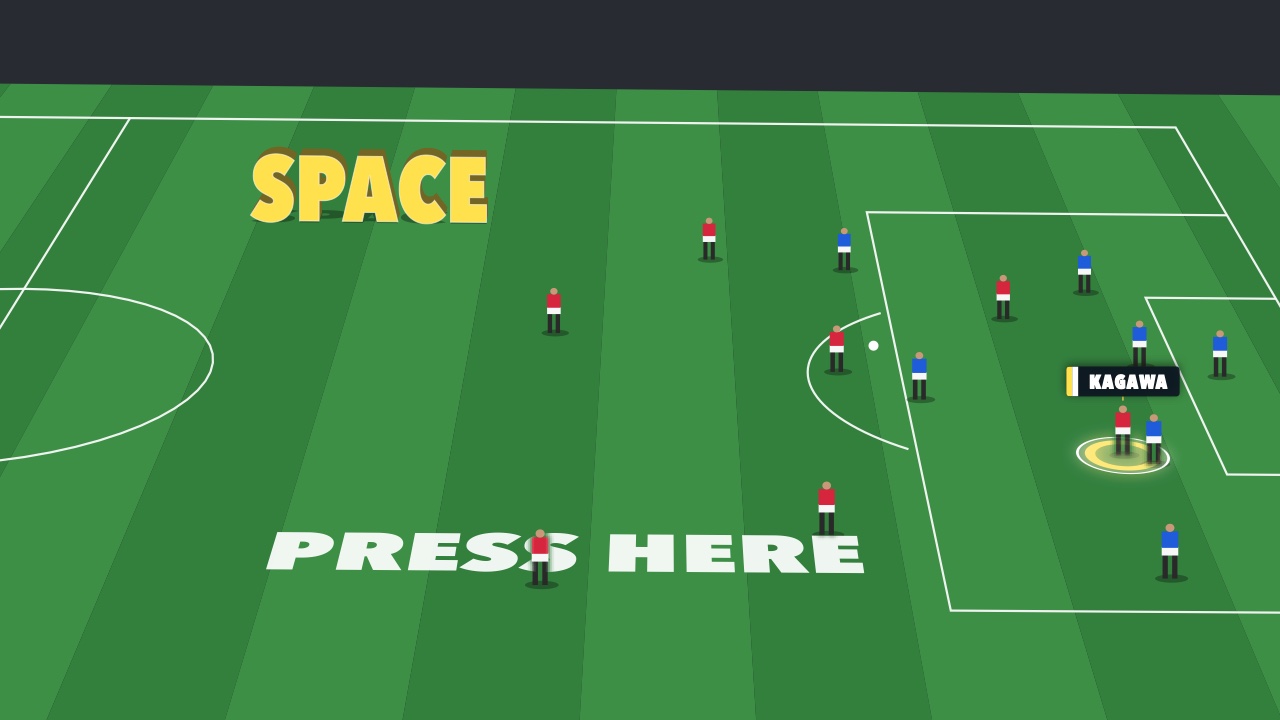
Write it on the grass.
Paint a word onto the pitch, in perspective, with the players standing on top of it. Or stand it up in 3D. Name tags take a player's name, your club crest, and any font and colour.
A whole meeting in one project.
Open all the clips for the session together, draw on each, then export one video per clip or join them into one. Settings remember how you like it: freeze length, look, colours, fonts and your logo.
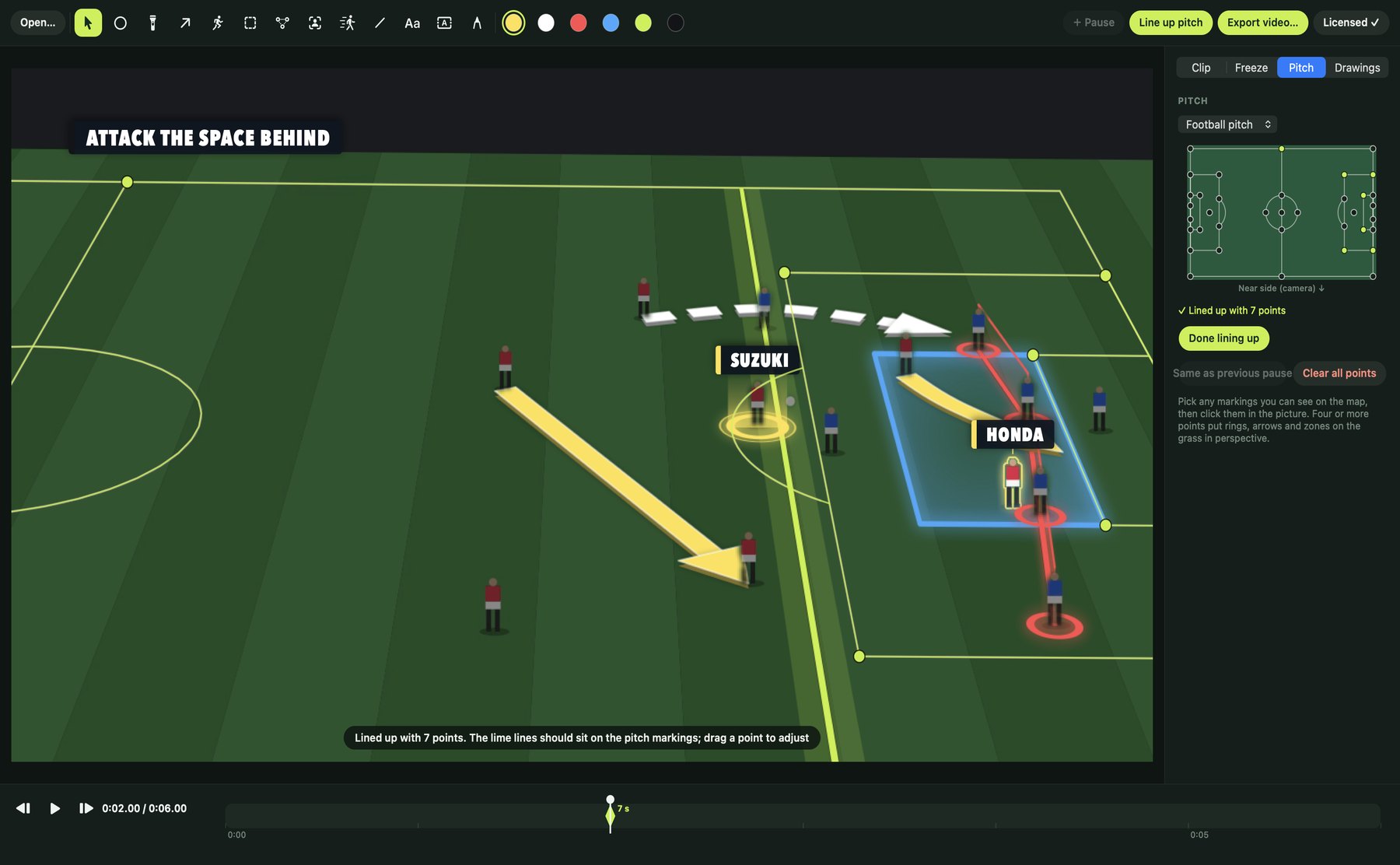
Line up once. Draw freely.
Pick any markings you can see on the pitch map (corners, box corners, the six-yard box, the halfway line, the centre circle) and click them in the picture. Four points is enough; the pitch's lines appear over the footage so you can see it fits. Every pause after that starts lined up already.
- Football and rugby pitches
- Freeze for as long as you need
- Undo everything; projects save and reopen
- Nothing uploaded: it all stays on your Mac
Prepare with Touchliner Pro. Present with Touchliner.
Make the clips the day before and click Send to Touchliner. In the meeting, tap Clips on the iPad: each clip plays on the TV and stops at every freeze, and you can draw over it live with Touchliner.
Pricing.
Try everything free. Subscribe to export without the watermark.
Touchliner Pro
Billed monthly. Cancel any time.
- Every drawing tool, 3D on the grass
- Tactics view, several clips, unlimited exports
- Send clips to Touchliner, stopped at every freeze
- One Mac per subscription
Want to try it first? Download Touchliner Pro and use every feature before you subscribe.
Prices include VAT where applicable. Payments are handled securely by our payment partner.
Questions.
What do I need?
A Mac on macOS 13 or later and your clips as MP4 or MOV files, for example exported from your analysis software.
How does the 3D work?
You click four or more markings Touchliner Pro knows (a corner, the corners of the box, where the halfway line meets the touchline, and so on). From those it works out the angle of the camera, so rings, arrows and zones are drawn as if painted on the grass.
Do players really stay in front of the drawings?
Yes, on a normal green pitch. Touchliner Pro only paints where the picture is grass, so players and the ball sit on top. You can switch this off for any drawing.
Can I try it first?
Yes. Everything works; exports carry a faint watermark until you subscribe.
Does it keep the sound?
Yes. The clip's sound plays as normal and goes quiet during each freeze, so it stays in step. You can switch it off.
Do the drawings follow the players?
Yes. After a freeze, click Follow and rings, spotlights, highlights and linked players stay on those players as the clip plays on. You choose for how long.
Does it work for rugby?
Yes. Choose the rugby pitch and line up with the try lines, 22s, 10-metre lines or the halfway line.
Can I use it on more than one Mac?
One Mac at a time. To switch, click Remove License in the Touchliner Pro menu on the old Mac, then enter your key on the new one.
Do I need Touchliner too?
No. Touchliner Pro makes the clips on its own. With Touchliner (sold separately) you can also present them live from your iPad, stopping at every freeze.
How do I cancel?
Use the link in your receipt email. You keep access until the end of the month. See the refund policy.